Create Ed-Fi API Credentials
Use SBAA to create API credentials for systems that need to connect to your Ed-Fi ODS.
Tip
Before you start, review resource authorization in Ed-Fi so you understand vendors, claimsets, and how access works.
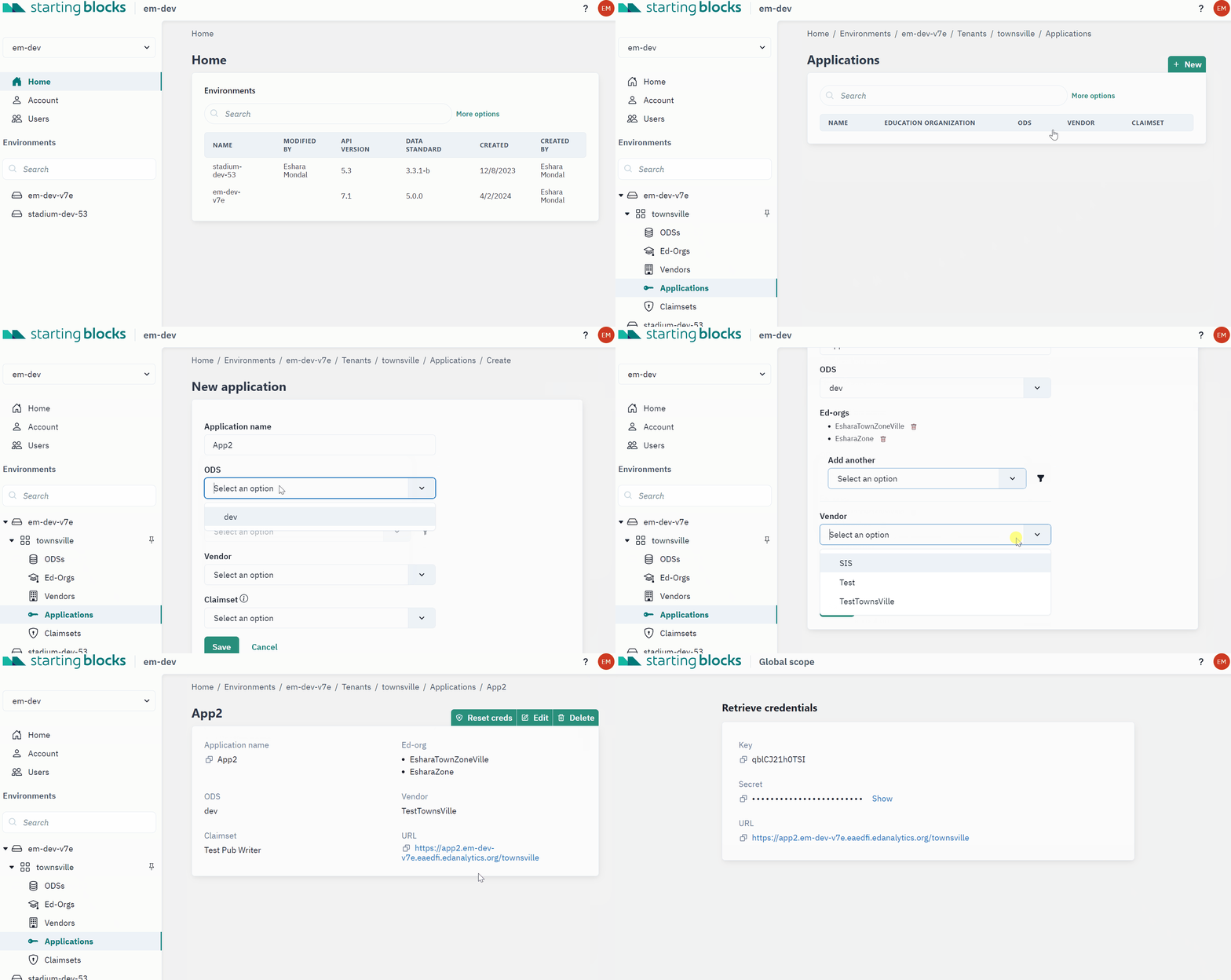
- Sign in to SBAA and, in the left navigation, select the StartingBlocks environment where you want to create credentials.
- Open the Ed-Fi tenant the application should belong to.
- Under Resources, select Applications.
- Click + New at the top of the Applications table.
- Fill in the required fields:
- Application Name — Use a name that identifies the integrating system (for example, the vendor or product name). This name also appears in the API URL SBAA generates.
- Education Organization (Ed-Org) — Choose the organization these credentials should be tied to. The application will generally be able to access data related to that Ed-Org.
- Vendor — Select the vendor for the integrating system. On shared environments running Ed-Fi versions before 7.1, EA manages the vendor list. On Ed-Fi 7.1+, your Team can manage vendors in the tenant.
- Claimset — Select the claimset that matches the access the system needs. Claimsets are named for the type of access they provide. If you are unsure which to use, contact EA.
- Optionally select an Integration Provider for your application.
- Click Save. SBAA shows a link to your new API credentials. Open the link to view them.
Warning
The credentials link is one-time access. Save the key and secret in a password manager, or enter them directly into the integrating system. You will not be able to view them again from this link.
Delete or Reset Ed-Fi API Credentials
You can reset credentials for an existing application, or delete the application entirely.
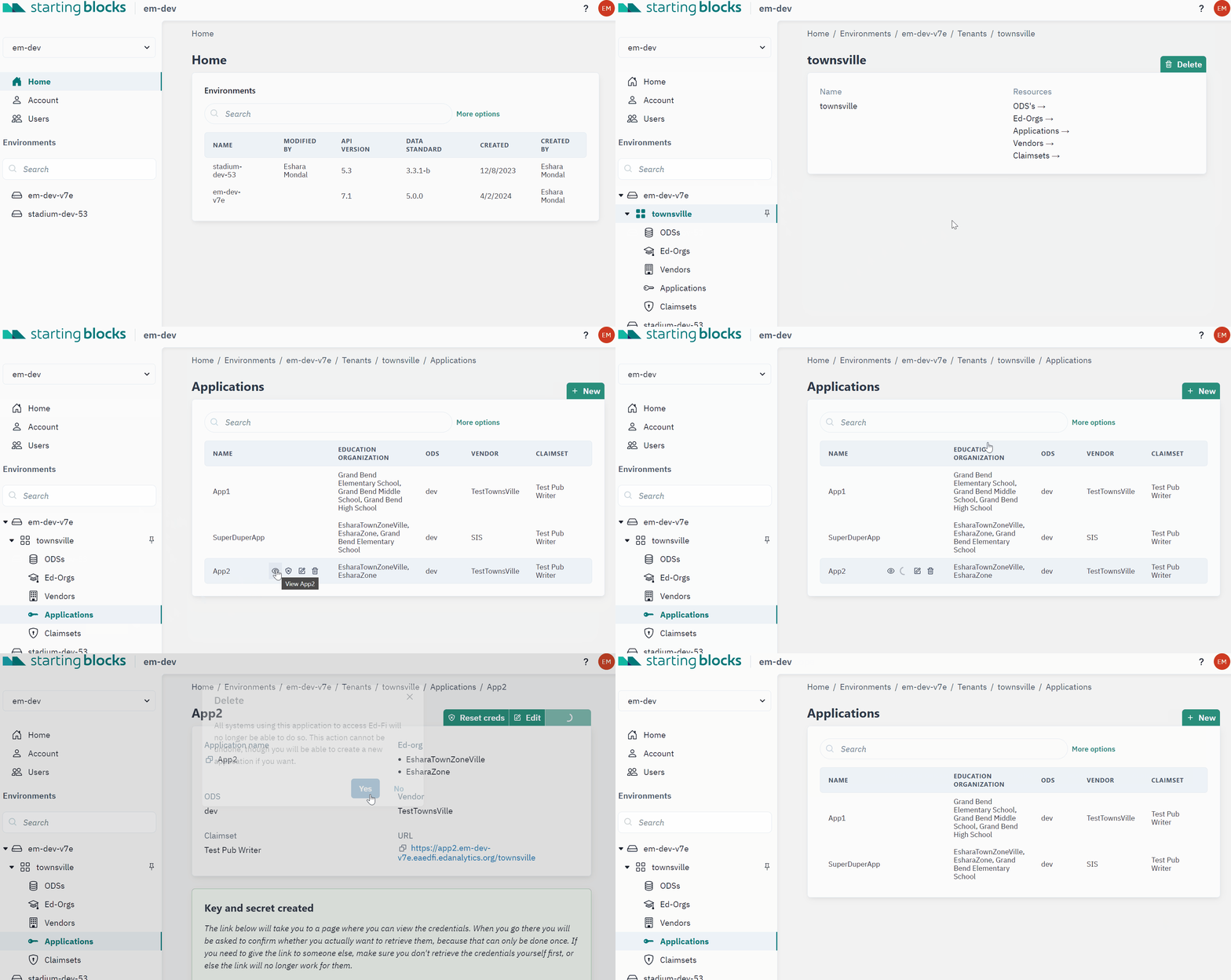
- In the left navigation, open the StartingBlocks environment and Ed-Fi tenant that contain the application.
- Under Resources, select Applications.
- Find the application in the table (you can search by name).
- Hover over the application name to show the action buttons, then choose Reset or Delete.
Reset credentials
Resetting credentials opens the application's details page and shows a new one-time link to the updated key and secret — the same kind of link you get when creating an application.
Warning
The reset credentials link is one-time access. Save the new key and secret in a password manager, or enter them into the integrating system. The previous credentials will no longer work.
Delete an application
Deleting removes the application and its credentials from the tenant and StartingBlocks environment.
- Click Delete.
- Confirm when prompted by selecting Yes.
Warning
Deleting an application cannot be undone. Any system using those credentials will lose access until you create a new application.